No Border Word: Remove Text Box Outline
Are you tired of seeing those unsightly borders around your text boxes in Microsoft Word? You're not alone. While borders can sometimes be useful for highlighting or organizing text, they're often unwanted and can detract from the clean, professional look you're aiming for in your documents. The good news is that removing them is a breeze once you know how. Let's delve into the process of removing borders from text boxes in Word.
To help you find this information quickly, we've broken down the guide into two main topics: understanding text box borders and removing them. Let's explore these in detail.
Understanding Text Box Borders
Text box borders, as the name suggests, are the lines that appear around a text box in Word. They can be of various types, such as single, double, or triple lines, and can also be customized with different colors and styles. Understanding how these borders work is the first step in learning how to remove them.

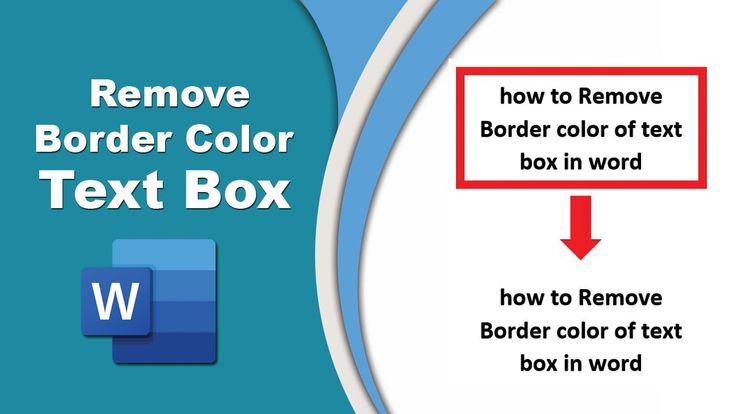

Borders are typically added to text boxes through the 'Format' menu or the 'Home' tab in the 'Borders' group. However, depending on the version of Word you're using, the process might vary slightly.
Types of Text Box Borders
Word offers a variety of border types for text boxes. These include:


- No Border: This simply removes any border from your text box.
- Single: A single line border around your text box.
- Double: Two parallel lines around your text box.
- Shadow: A border with a.offset effect, giving the text box a 3D appearance.
Each of these border types can further be customized with colors, line styles, and widths, allowing for a high degree of control over the appearance of your text box.
Default Border Settings
Word has default settings for text box borders. These can usually be found in the 'Format' menu under 'Border and Shading' or in the 'Borders' group in the 'Home' tab. The default settings include a black, single line border with a width of 1.0 point.
Now that we've covered the basics of text box borders let's move on to removing them from your documents.
Removing Text Box Borders
Removing borders from text boxes in Word is a straightforward process. Here's a step-by-step guide:
First, select the text box whose border you want to remove. To do this, click anywhere inside the text box to insert your cursor. The text box should now be outlined with a dotted line, indicating that it's selected.
Next, look at the top ribbon in Word. You should see a tab labeled 'Home'. In the 'Home' tab, you'll find a group labeled 'Paragraph'. In this group, click on the small arrow in the bottom-right corner. This opens the 'Borders and Shading' dialog box.
Removing a Single Border
In the 'Borders and Shading' dialog box, you'll see several options for adding or removing borders. To remove a border, simply click on the border style you want to remove. The selected border style will be outlined in orange, indicating that it's currently applied to your text box.
To remove the border, click on the border style again. The orange outline should now disappear, indicating that the border has been removed. You can also select 'No Border' from the drop-down list to remove all borders at once.
Removing All Borders at Once
If you want to remove all borders from a text box at once, you can do so by selecting 'No Border' from the 'Borders and Shading' dialog box. This will remove all borders from your text box, leaving it with a clean, borderless appearance.
Remember, the 'Borders and Shading' dialog box offers a wealth of customization options. You can use these to not only remove borders but also to add and customize them according to your needs.
In learning to remove borders from text boxes in Word, you've gained a valuable skill that can significantly improve the look and professionalism of your documents. Whether you're a student, a professional, or anyone else who regularly uses Word, knowing how to manage text box borders can make a world of difference.
Now that you've mastered the art of border removal, you might want to explore other aspects of Word, such as customizing your text boxes, adding fills, or even creating text box borders from scratch. With a bit of practice and experimentation, the possibilities are endless. Happy document creating!
Related Articles
"Remove Word Text Box Border: Step-by-Step Guide"
Working with text boxes in Microsoft Word often comes with default borders that can sometimes be distracting or unwanted in your final document. Removing these...

Remove Text Box Border in Word: Quick Tips
Ever found yourself drafting a professional document, only to be distracted by unsightly lines around your text box? Fear not, for Microsoft Word offers a...
Effortlessly Remove Text Box Borders in Microsoft Word
Ever found yourself in need of a text box in Microsoft Word, but fancy a borderless, clean look? Removing a text box border might seem tricky, but never fear...
Easy Steps: Remove Text Box Border in Word
Creating visually appealing documents in Microsoft Word often requires adjusting the default settings of text boxes. One such adjustment is removing the border...

Effortlessly Remove Border Lines in Microsoft Word
Are you tired of unwanted borders around your text in Microsoft Word? Borders can make your document look unprofessional and cluttered. Fear not, removing...
Eliminate Text Box in Word: Step-by-Step Guide
Are you frustrated with unwanted boxes around text in Microsoft Word? You're not alone. These boxes, often called 'text boundaries' or 'selection handles,' can...