How to Add Netflix Profile
Do you have multiple users sharing your Netflix account? Adding profiles can help keep your watch history and preferences separate, ensuring everyone's individually tailored recommendations. Here's a step-by-step guide to add Netflix profiles, keeping your streaming experience personalized and stress-free.
Before we delve into the process, ensure you're on a compatible device for adding profiles. This includes web browsers, smart TVs, and mobile devices. Now, let's get started!
Adding a New Profile on Your TV
The process might vary slightly depending on your device, but the following steps will guide you through adding a new profile on a smart TV or a gaming console:


Note: The main account holder's profile cannot be deleted. However, it can be hidden or renamed.
From the Netflix Home Screen
Start by navigating to the Netflix home screen. From there, follow these steps:

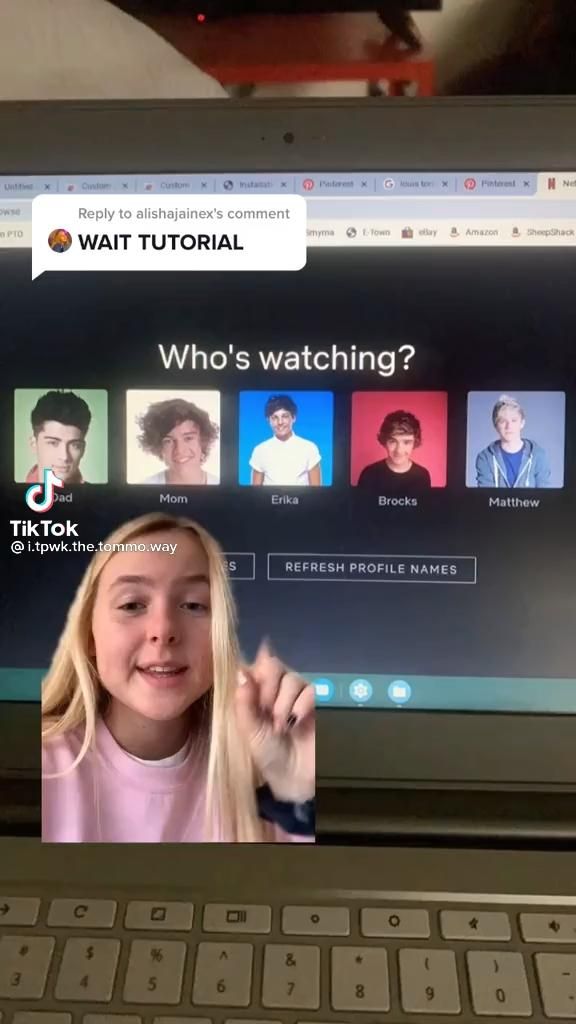
- Scroll up to access the profile icon.
- Hover over the main account holder's profile and click on 'Manage Profiles.'
- Click on 'Add Profile.' A screen will ask you to confirm. Click 'Yes.'
- Enter the new profile name (up to 25 characters).
- Press the back button on your remote control to save the new profile.
Changing Profile Settings
After adding a new profile, you might want to customize its settings. Here's how you can do it:
- Go back to 'Manage Profiles.'
- Select the profile you want to alter.
- personalidad
- Select the appropriate viewers level, input the profile's maturity level, and choose their preferred language.
Adding a Profile on a Mobile Device or Web Browser
The process is slightly different on mobile devices and web browsers, but don't worry, it's just as simple!
Note: Kids profiles can only be managed on web browsers or mobile devices. They cannot be managed on TVs.
From the Profile Icon
On a mobile device, follow these steps:
- Tap on the profile icon at the top-right corner of the screen.
- Select 'Manage Profiles.'
- Tap on the '+' icon to add a new profile.
- Enter the new profile's name and tap 'Done.'
On a web browser, the process is similar:
- Hover over your profile icon at the top-right corner of the screen.
- Click 'Manage Profiles.'
- Click on the '+' icon to add a new profile.
- Enter the new profile's name and click 'Done.'
Managing Kids Profiles
To create a profile for younger viewers, follow these steps:
- Select 'Manage Profiles.'
- Click on 'Add Profile.'
- Select 'Kids.'
- Choose the appropriate maturity level and tap 'Continue.'
- Enter the new profile's name and tap 'Done.
Now that you've added new profiles, everyone can enjoy their personal Netflix experience. Happy streaming!
Related Articles
Change Netflix Profile on Roku: Step-by-Step Guide
Struggling to keep Netflix organized for multiple users? Managing separate profiles on your Roku device can be a breeze once you understand how to change...

Netflix: How to Add a Profile (Step-by-Step)
Streaming services like Netflix have revolutionized the way we consume content, allowing us to enjoy a vast library of TV shows, movies, and documentaries on...

How to Add a Password to Your Netflix Profile
Safety and privacy are paramount when it comes to streaming content on Netflix. One way to ensure this is by adding a password to your Netflix profile. This...

How to Change Your Profile Picture in Warframe
Ever wanted to showcase your unique style or represent your Warframe clan with a personalized profile picture? Changing your profile picture in Warframe is a...

How to Update Your Facebook Dating Profile
Interested in putting your best foot forward on Facebook Dating? Keeping your profile fresh and up-to-date can attract the right kind of attention. Here's a...

How to View Profile Picture on Instagram
Ever stumbled across an intriguing Instagram profile and wondered how to view their profile picture more closely? While Instagram is designed for mobile use...