How to Screenshot on an Acer Desktop
Whether you're sharing a game-winning moment or a funny online exchange, knowing how to screenshot on your Acer desktop can be invaluable. This guide will walk you through the process using the two most common methods: using the Print Screen key and the built-in Snipping Tool.
Before we dive in, ensure that you're using a Windows operating system as Acer desktops typically come pre-installed with Windows. If you're using a different system, the steps might vary.
Using the Print Screen Key
The Print Screen (PrtScn or Print Scr) key is a quick and easy way to capture your entire desktop.


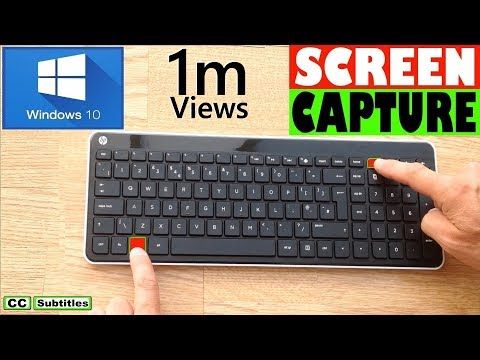
First, simply press and hold the 'PrtScn' key on your keyboard. Your screen will flash briefly to confirm the screenshot has been taken. Next, open Paint or any image editing software to paste the screenshot. To do this, press 'Ctrl + V'.
Saving and Emailing Screenshots
To save your screenshot directly to your desktop or other locations, press 'Win + PrtScn'. In a few seconds, your screenshot will be saved as a .png file in your 'Pictures' > 'Screenshots' folder.


Additionally, if you want to quickly email your screenshot, you can do so by following these steps: Press 'Alt + PrtScn', open your email client, and then paste the image using 'Ctrl + V'.
Using the Snipping Tool
The Snipping Tool is more versatile than the Print Screen key, allowing you to capture specific areas of your screen, rectangles, or free-form shapes.
To open the Snipping Tool, simply search for it in your Start menu. Once open, click 'New' to create a new snip. Your screen will go grey, and your cursor will change to a crosshair. Click and drag to select the area you want to capture.
Types of Snips and Options
In the 'Mode' dropdown menu, you can choose the type of snip you want to create:
- Rectangular Snip: Drag the crosshair to select a rectangular area.
- Free-form Snip: Draw any shape you want with your cursor.
- Window Snip: Capture the entire window that's currently active.
- Full-screen Snip: Take a snap of your entire desktop.
Once you've taken your snip, you can save, copy, or email it by clicking the relevant icon on the right side of your screen.
Whether you're using the Print Screen key or the Snipping Tool, you now have the power to capture not just images, but also moments on your Acer desktop. Happy snapping!
Related Articles

Mastering Screenshots on Lenovo PC: Step-by-Step Guide
Capturing your screen or a specific portion is an essential aspect of computing, especially when you need to share information, troubleshoot issues, or keep...

Mastering Screenshots: How To On Acer Computer
Screenshots are an essential part of modern computing, helping us capture and share visual information from our computer screens. If you're using an Acer...
Mastering Acer Screenshots: Ultimate Guide
Ever wanted to capture a moment on your Acer laptop? Whether it's a webpage you want to save or an error message you need to report, knowing how to screenshot...
How to Screenshot on Acer Laptop: Ultimate Guide
Printing a screen on an Acer laptop can come in handy when you want to capture an image of your desktop or a specific window for reference or troubleshooting...
How to Take a Screenshot on Acer Laptop
In today's digital age, capturing visual content is as easy as a few clicks or taps. This is particularly useful when working with an Acer laptop, as you might...
Mastering Acer Screenshots: How-to Steps for Simple Screenshots
Acer computers are popular for their durability and performance, but sometimes you might need to capture your screen to share information or troubleshoot...