How to Close the Year in QuickBooks Online: Step-by-Step Guide
The end of the year is approaching, and it's time to ensure your financial records are up-to-date and organized. QuickBooks Online is a powerful tool that simplifies this process, allowing you to close your books efficiently. In this guide, we'll walk you through the steps to close your year in QuickBooks Online, making your year-end financial management a breeze.
Before we dive into the process, ensure that your financial records are accurate and all transactions are accounted for. This includes invoices, bills, expenses, and payments. Once you're confident that all your data is in order, let's proceed to closing your year in QuickBooks Online.
Preparing for Year-End Closure
The first step in closing your year is to prepare your accounts for the closure process. This involves reviewing and reconciling your accounts to ensure that all transactions are accurate and that there are no outstanding items.


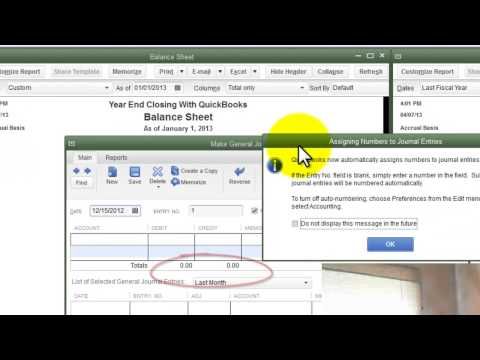
Begin by reconciling your bank accounts to ensure that all transactions are accounted for and that your books are accurate. QuickBooks Online helps you automate this process by comparing your bank statements with your accounting records. Make any necessary adjustments to ensure that your accounts are balanced.
Reviewing and Completing Open Transactions
Before closing your books, it's crucial to review and complete any open transactions. This includes invoices that are pending payment, bills that are outstanding, and expenses that are yet to be recorded.


QuickBooks Online allows you to filter your transactions by status, making it easy to locate open transactions. Use the 'Aging' report to identify invoices that are overdue for payment and ensure that they are marked as paid once the payment is received. Similarly, review your 'Purchases' tab to confirm that all bills have been paid and that your expenditure is accurate.
Backing Up Your Data
Before proceeding with the year-end closure, it's essential to back up your data. This ensures that you have a copy of your financial records in case of any technical issues or data loss.
QuickBooks Online automatically backs up your company file daily, but it's still a good practice to manually export important reports, such as your Profit and Loss Statement and Balance Sheet, to your computer. This provides an additional layer of security and ensures that you have easy access to your financial records.
Closing Your Books for the Year
Once you've prepared your accounts and ensured that all transactions are accurate, you can proceed to close your books for the year. This process finalizes your financial records for the year and prepares them for tax filing.
In QuickBooks Online, the year-end closure process involves marking your income and expense accounts as closed, preventing further transactions for the year. However, it's important to note that closing your books doesn't delete any data; it simply locks the accounts for the year, making it easier to manage your financial records.
Closing Your Income and Expense Accounts
To close your income and expense accounts, navigate to the 'Accounting' tab and select 'Chart of Accounts.' Here, you'll find a list of your income and expense accounts. Click on the 'Actions' gear icon next to each account and select 'Close.' QuickBooks Online will ask you to confirm that you want to close the account for the year. Answer 'Yes' to confirm.
When closing your accounts, QuickBooks Online will automatically roll over your balances to the new year. This is done to ensure that your financial records are accurate and that you're starting the new year with a clean slate.
Running Year-End Reports
Once you've closed your accounts, it's a good practice to run year-end financial reports. These reports provide a snapshot of your financial health for the year and are essential for tax filing and planning.
QuickBooks Online allows you to generate various year-end reports, including the Profit and Loss Statement, Balance Sheet, and Cash Flow Statement. These reports are generated based on the accounts you've closed, providing an accurate representation of your financial health for the year. Be sure to review these reports and ensure that they match your expectations before using them for tax filing.
As the new year begins, make sure to reopen your accounts to start recording transactions for the year. This will allow you to continue managing your financial records and prepare for year-end closure once again. QuickBooks Online's year-end closure process simplifies the process of closing your books, enabling you to focus on growing your business in the new year.
Related Articles
How to Close Quickbooks for the Year: Step-by-Step Guide
Closing your books for the year is a critical task when using QuickBooks, ensuring your financial records are complete, accurate, and ready for tax filing...
QuickBooks Year-End Closure: Step-by-Step Guide
The end of the year is a critical time for businesses to tie up loose ends and prepare for the next tax season. If you're using QuickBooks, there are specific...

Uncover Hidden Fees in QuickBooks Online: A Step-by-Step Guide to Find Unbilled Charges
Ever found yourself tallying up expenses in QuickBooks Online only to realize you've missed some unbilled charges? It's easy to overlook such entries...

Refund a Customer Overpayment in QuickBooks Online: Step-by-Step Guide
Have you accidentally overcharged a customer in QuickBooks Online? Don't panic! Refunding an overpayment is a straightforward process. This guide will walk you...

"Disable Pop-ups in QuickBooks Online: Step-by-Step Guide"
If you're finding QuickBooks Online's pop-up notifications disruptive to your work, you're not alone. Luckily, QuickBooks provides options to customize and...

Close E*TRADE Account Online: Step-by-Step Guide
Are you looking to leave Etrade and close your account? We understand that circumstances change, and we're here to guide you through the process. In this...