How to Quickly Clear Spam in Gmail
Discovering your Gmail inbox overflowing with unwanted spam can be frustrating. But don't let it overwhelm you; instead, empower yourself to take control and clear out the clutter. By following a few straightforward steps, you can not only remove spam from your Gmail but also implement preventive measures to keep it at bay. Here's a comprehensive guide on how to clear spam in Gmail:
Start by understanding the basics of Gmail's Spam Filter. Gmail uses advanced algorithms to detect and filter out potential spam. However, sometimes it might miss the mark or let some slip through. It's essential to know that you have the final say: any email you mark as spam will help Gmail's filter improve. Now let's dive into the steps:
Identifying and Removing Spam
Gmail has a dedicated Spam folder where it automatically places suspected spam emails. The first step is to check and remove spam from this folder.


1. Open Gmail and click on the 'Spam' label in the left-hand menu. Here, you'll find all the emails Gmail has marked as potential spam.
Manually Marking Spam
Sometimes, useful emails might mistakenly end up in the Spam folder. For such cases, you can manually mark them as 'Not Spam'.

1. Select the email you want to mark as 'Not Spam'.
2. Click on the 'Not Spam' button at the top of the screen. This will move the email back to your inbox and update the Spam filter.
Manually Marking Spam for Future Reference
To enhance Gmail's spam filtering, you can manually mark senders or emails as spam. This helps Gmail's algorithm learn and improve over time.
1. Open the email you want to mark as spam.
2. Click on the three-dot icon (More) next to the reply button.
3. Select 'Report Spam' from the dropdown. Doing so will move the email to the Spam folder and update the Spam filter.
Preventive Measures to Reduce Spam
Once you've cleared out the spam, it's crucial to implement preventive measures to keep your inbox clean:
Unsubscribe from Unwanted Mailing Lists
Sometimes, spam can come from newsletters or mailing lists you once signed up for but no longer find useful. Unsubscribing from these lists can significantly reduce spam in your inbox.
1. Open the email from the sender you want to unsubscribe from.
2. Look for an 'Unsubscribe' link at the bottom of the email. Clicking on this link should take you to a page where you can confirm your request to unsubscribe.
Use Gmail's Filtering and Blocking Features
Gmail allows you to create custom filters and blocked senders' lists to manage your inbox efficiently.
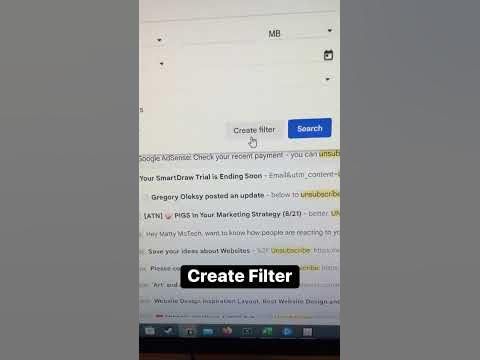
1. **Creating Filters**: You can create filters to automatically label, delete,archive, forward, mark-starred, or automatically-notify you of specific email addresses, domains, or keywords. Here's how: Click the drop-down arrow in the search bar at the top of your Gmail page, then check the boxes next to the criteria you want to use (like 'from', 'to', 'subject', etc.). Then, click 'Create filter' and choose what you'd like the filter to do.
1. **Blocking Senders**: You can block specific email addresses to prevent them from sending you emails in the future. Here's how: Open the email, click the three-dot icon (More) next to the reply button, select 'Block [sender's name]' from the dropdown. A pop-up will confirm your action, and you can choose to also unsubscribe from the sender's mailing list.
After following these steps, you should see a significant reduction in spam in your Gmail inbox. Keep up this good habit, and your inbox will remain a clutter-free, organized space. Moreover, Gmail's spam detection will improve over time, adapting to your actions and preferences. So, stay vigilant, take control, and enjoy a spam-free Gmail experience!
Related Articles

"The Ultimate Guide: Permanently Stop Gmail Spam Emails for Good"
Do you find yourself drowning in a sea of spam emails in your Gmail inbox? You're not alone. Spam emails can be incredibly frustrating, but the good news is...

Recover Spam Emails in Gmail: A Step-by-Step Guide
Have you found yourself on the wrong side of an overzealous spam filter in your Gmail inbox? It's an all-too-common occurrence, but don't worry, you're not...

How to Spot Spam Mail in Gmail
Have you been noticing an influx of unwanted, unsolicited, or even suspicious emails in your Gmail account? You're not alone. Spam emails can be annoying, and...
How to Delete Spam Folder in Gmail
Do you find your Gmail spam folder overflowing with unwanted emails? Gmail's spam filter is quite effective, but sometimes it might mistakenly mark legitimate...
"Eliminate Spam: How to Delete Unwanted Emails in Gmail
Are you tired of sorting through endless emails, only to find that the majority of them are nothing more than spam? Gmail, in its effort to keep your inbox...

Stop Gmail Spam Instantly: Block Unopened Emails
Tired of your Gmail inbox being flooded with spam emails? Here's a comprehensive guide on how to block spam emails on Gmail without even opening them, ensuring...